Appearance
User Management — Users
The Users section (/user) manages individual accounts in Coldwave — the people who actually log in. It's part of the broader User Management area, which also covers Roles and Groups.
Contents
- The access model in one minute
- Page layout
- User table
- Detail tabs
- Creating, editing, deleting users
- Deep links
- Persistence — what is remembered
1. The access model in one minute
A user belongs to a group and holds one or more roles. The role grants access to a set of devices and services, scoped by the group.
To change what a user can see, you typically don't edit the user directly — you change the role or the group they belong to. The Users section is mostly used to create accounts, manage their direct device assignments and grant or revoke roles.
2. Page layout
The Users section uses the same list-plus-detail pattern as the rest of User Management.
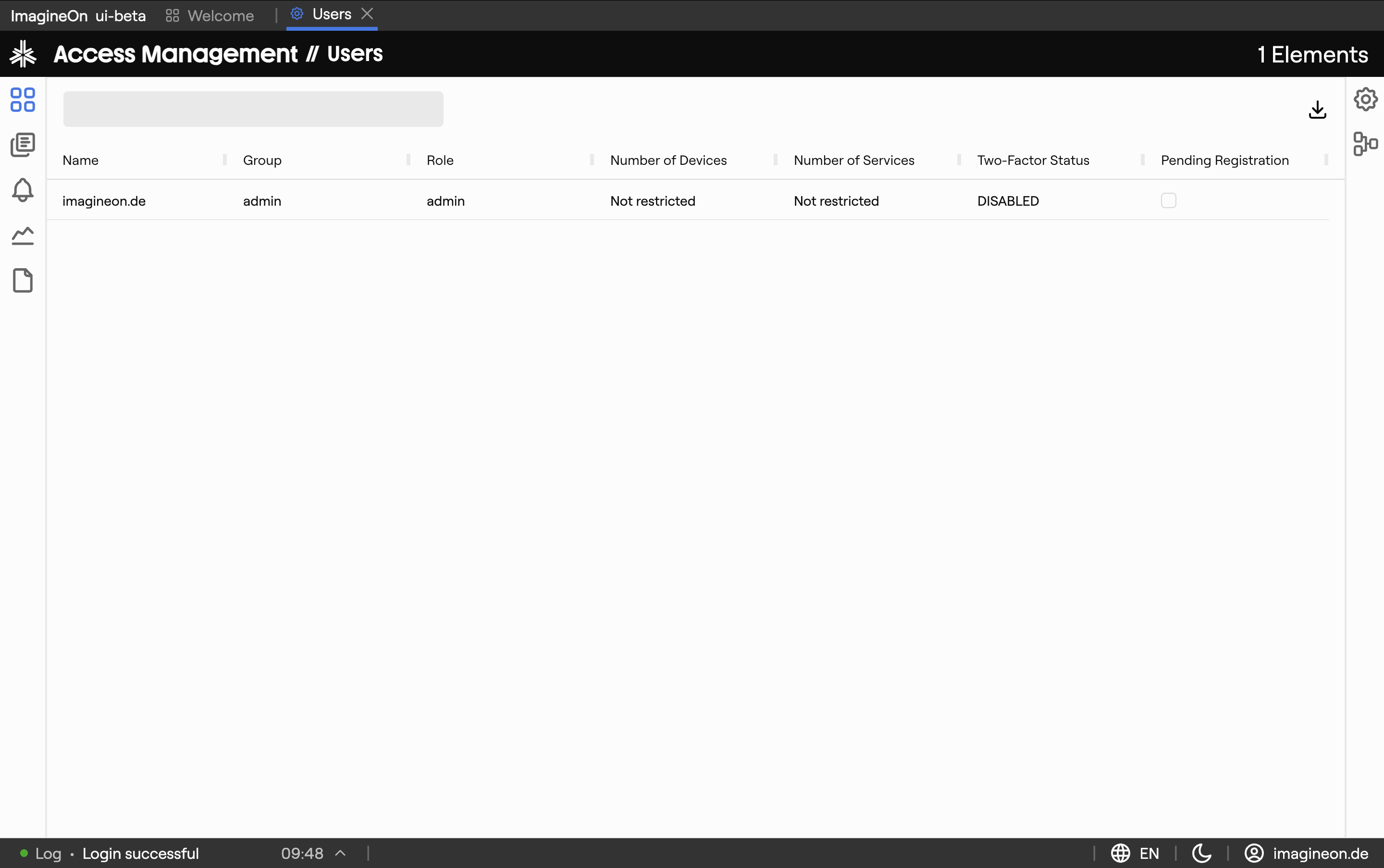
| Area | What lives there |
|---|---|
| User table | All users you have access to, with configurable columns. |
| Detail panel | Opens when you click a row, with one tab per relationship. |
| Toolbar | Add User, column editor, CSV export. |
Selecting a row updates the URL to include the user's identifier, so reloading or sharing a URL reopens the same user.
3. User table
Default columns:
| Column | Meaning |
|---|---|
| Name | The login name. |
| Group | Which group the user belongs to. |
| Role | Which role(s) the user holds. |
| Devices | Count of devices the user can see (granted via role + group). |
| Services | Count of services the user can interact with. |
| 2FA | Whether two-factor authentication is set up. |
| Pending registration | True if the user was invited but hasn't completed signup yet. |
The same column management as everywhere else in Coldwave: drag to reorder, drag the edge to resize, click the header to sort, use Edit Columns to add or remove columns. Layout is remembered per user. CSV export dumps the currently visible rows.
4. Detail tabs
| Tab | What you can do |
|---|---|
| Devices | Pick devices this user can access directly (in addition to what their role + group grants). |
| Services | Pick which services on those devices the user can interact with. |
| Access | Show and edit which role(s) the user holds. Roles inherit through the user's group. |
Cross-link: from the Access tab you can jump to a role's detail page to see all the other users who share that role.
5. Creating, editing, deleting users
Creating
Click Add User in the toolbar. The modal asks for:
- Name — the login name.
- Registration code — an invite code you communicate to the user out-of-band. The user combines it with a self-chosen password during signup.
The new user appears in the table immediately, marked as Pending registration until they complete signup.
Editing
Most fields are edited inline within the detail panel — there's no separate "edit mode". Device and service assignments are toggle lists; you tick what you want and the change is saved.
The user's display name and similar lightweight fields are edited inline in the detail panel header.
Deleting
The detail panel has a Delete button. Deletion is destructive — the user loses access immediately. Coldwave asks for confirmation before deleting.
Tip. To temporarily revoke a user's access without deleting them, remove all their roles from the Access tab instead. Their account remains; they just can't see anything.
6. Deep links
Heads-up. These URL patterns are reliable when produced by Coldwave itself. Hand-constructed URLs from another user may not land where you expect — see URLs and tabs.
| URL | Effect |
|---|---|
/user | Open the user list with no user selected. |
/user/<userId>/devices | Open a specific user on the Devices tab. |
/user/<userId>/services | Open the Services tab. |
/user/<userId>/access | Open the Access tab. |
7. Persistence — what is remembered
Per-user, persisted between sessions:
- Column layout — visibility, order, width, sort.
- Selected user and tab — driven by the URL, so reloading or sharing a link reopens the same view.
Always fresh from the backend:
- Counts in the table (devices, services).
- Tick state in the assignment tabs.