Appearance
User Management — Groups
The Groups section (/group) manages collections of roles, devices and services. Groups are typically used to scope a tenant, a site or a customer — they're the outer container that bounds what's available to the roles defined inside them, and by extension to the users who hold those roles.
Contents
- The access model in one minute
- Page layout
- Group table
- Detail tabs
- Creating, editing, deleting groups
- Deep links
- Persistence — what is remembered
1. The access model in one minute
A user belongs to a group and holds one or more roles. The role grants access to a set of devices and services, scoped by the group.
The group establishes the outer envelope of what's possible. A role can only grant access to devices and services that its group has in scope. If you need to give a role access to a device that isn't in the group's scope yet, add it at the group level first.
Typical group examples:
- Customer Acme Corp — every device, role and user that belongs to that customer.
- Plant A — a site-scoped group with its on-site equipment and operators.
- Internal — Coldwave staff with access to everything (or a separate tier of devices).
2. Page layout
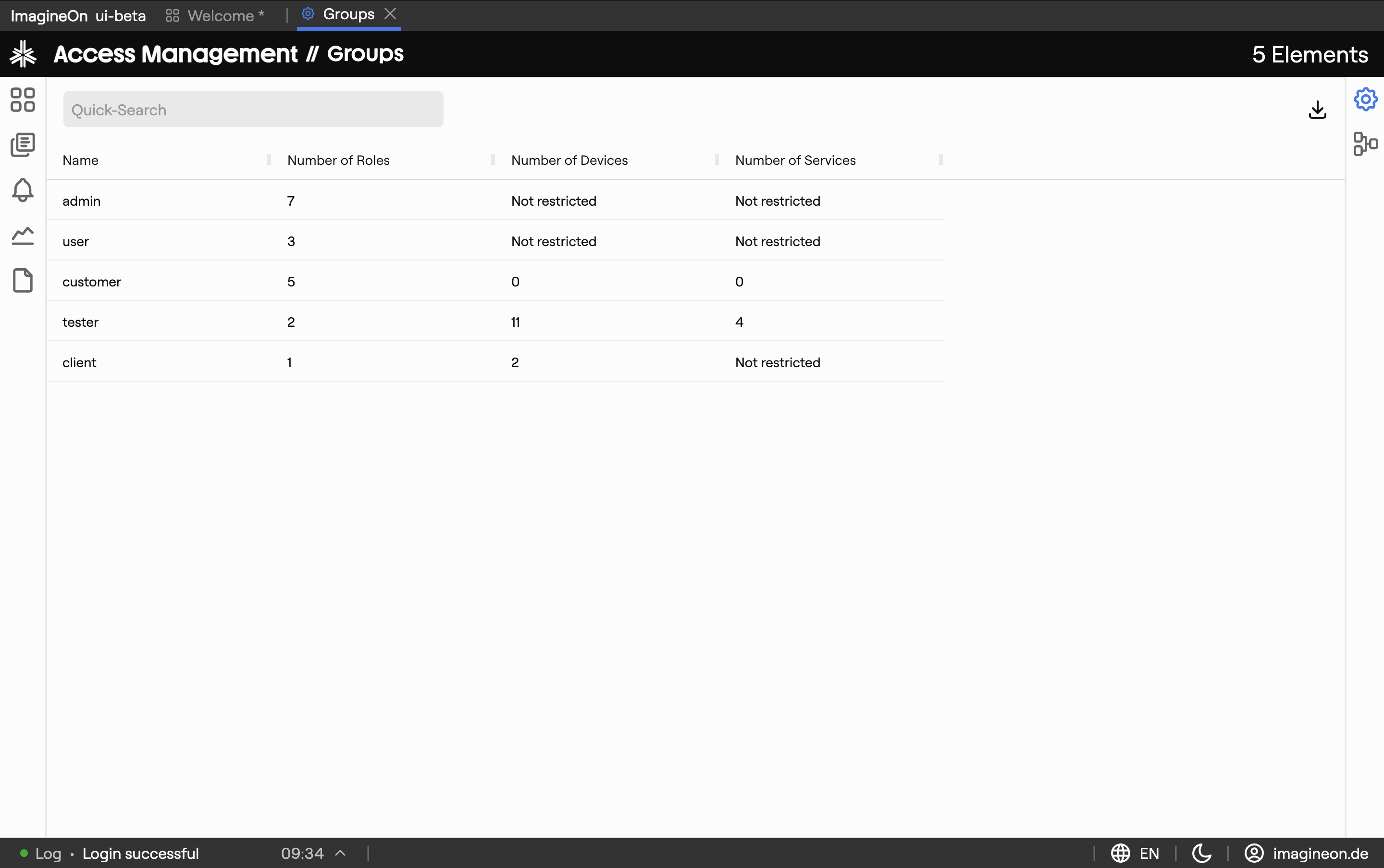
| Area | What lives there |
|---|---|
| Group table | All groups you have access to. |
| Detail panel | Opens when you click a row, with tabs for the group's relationships. |
| Toolbar | Add Group, column editor, CSV export. |
Selecting a row updates the URL to include the group's identifier, so reloading or sharing reopens the same group.
3. Group table
Default columns:
| Column | Meaning |
|---|---|
| Name | The group name. |
| Roles | Count of roles defined within this group. |
| Devices | Count of devices in scope for this group. |
| Services | Count of services in scope. |
The same column management as everywhere else in Coldwave: drag to reorder, drag the edge to resize, click the header to sort, use Edit Columns to add or remove columns. Layout is remembered per user. CSV export dumps the currently visible rows.
4. Detail tabs
| Tab | What you can do |
|---|---|
| Roles | Show and manage the roles that belong to this group. Click a role to jump to its detail page. |
| Devices | Pick devices in scope for the group; all roles in the group inherit from this list. |
| Services | Pick services on those devices that the group's roles can interact with. |
5. Creating, editing, deleting groups
Creating
Click Add Group in the toolbar. The modal asks for just a Name. The new group appears in the table immediately; open it to add devices, services and roles.
Editing
Open the detail panel and edit inline within the tabs. Device and service assignments are toggle lists. There is no separate "edit mode".
Deleting
The detail panel has a Delete button. Deleting a group also removes the roles defined inside it, which in turn revokes access for every user who held one of those roles. Coldwave asks for confirmation — this is a heavy action, treat it carefully.
6. Deep links
Heads-up. These URL patterns are reliable when produced by Coldwave itself. Hand-constructed URLs from another user may not land where you expect — see URLs and tabs.
| URL | Effect |
|---|---|
/group | Open the group list with no group selected. |
/group/<groupId>/roles | Open a specific group on the Roles tab. |
/group/<groupId>/devices | Open the Devices tab. |
/group/<groupId>/services | Open the Services tab. |
7. Persistence — what is remembered
Per-user, persisted between sessions:
- Column layout — visibility, order, width, sort.
- Selected group and tab — driven by the URL.
Always fresh from the backend:
- Counts in the table (roles, devices, services).
- Tick state in the assignment tabs.