Appearance
Schema Editor
The Schema Editor is Coldwave's data-dictionary workspace. Every numeric value, every state, every alarm-relevant property that flows in from a device is described by a schema entry: its type, its unit, its valid range, its display name in every supported language. The Schema Editor is where those entries are defined and maintained.
There are actually two parallel editors with identical behaviour:
- Schema — user-facing properties end users see in Fleet, Analytics, Reports and on dashboards.
- Meta-Schema — internal/system properties used by Coldwave itself (configuration, diagnostics, lifecycle flags).
The Schema Editor is aimed at administrators and integration engineers. If you can't see it in the navigation, your role doesn't grant the necessary permissions.
Contents
- Schema vs. Meta-Schema
- Page layout
- The property table
- Property Definitions tab
- Translations tab
- Adding a new property
- Saving and validation
- Deep links
- Persistence — what is remembered
1. Schema vs. Meta-Schema
Both editors look and behave the same way — the only difference is what they describe:
| Editor | Route | Describes |
|---|---|---|
| Schema | /settings/schema/... | Properties end users interact with. Examples: inlet temperature, pump pressure, operating mode. |
| Meta-Schema | /settings/meta-schema/... | Properties Coldwave uses internally. Examples: firmware revision, last heartbeat, config hash. |
When this guide says "the editor", it means either — pick the one that matches the property you want to edit.
2. Page layout
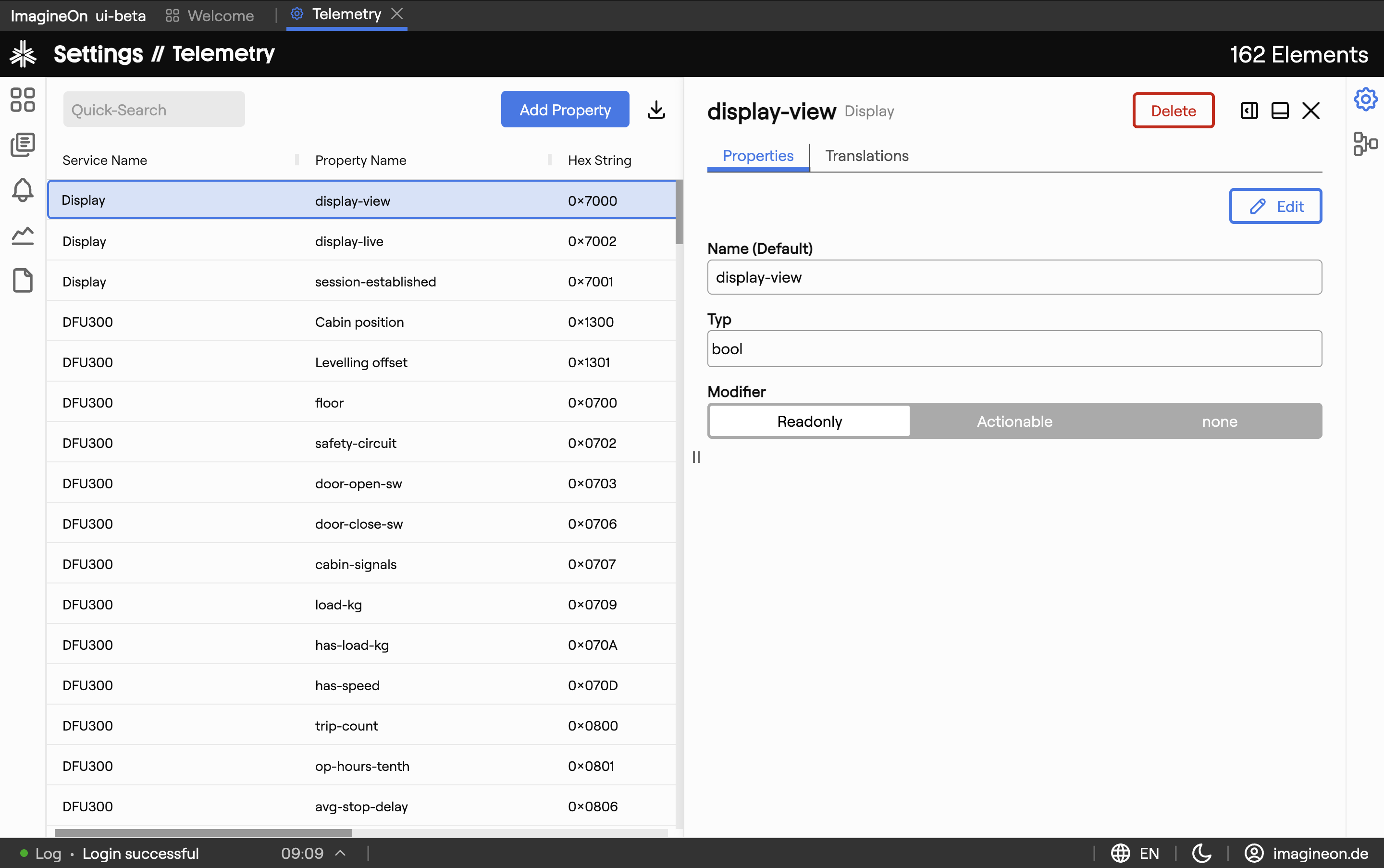
The editor is a classic split panel: list of properties on the left, detail of the selected property on the right.
| Area | What lives there |
|---|---|
| Property table | All schema entries, keyed by service + property hex-id. See §3. |
| Detail panel | Two tabs for the selected property: Property Definitions and Translations. |
| Toolbar | Add-property button, column editor, CSV export. |
When nothing is selected the detail panel is empty. Click any row to open it. The URL updates to include the service and property identifier, so the selection survives a reload.
3. The property table
The table on the left lists every property defined in the schema you're editing.
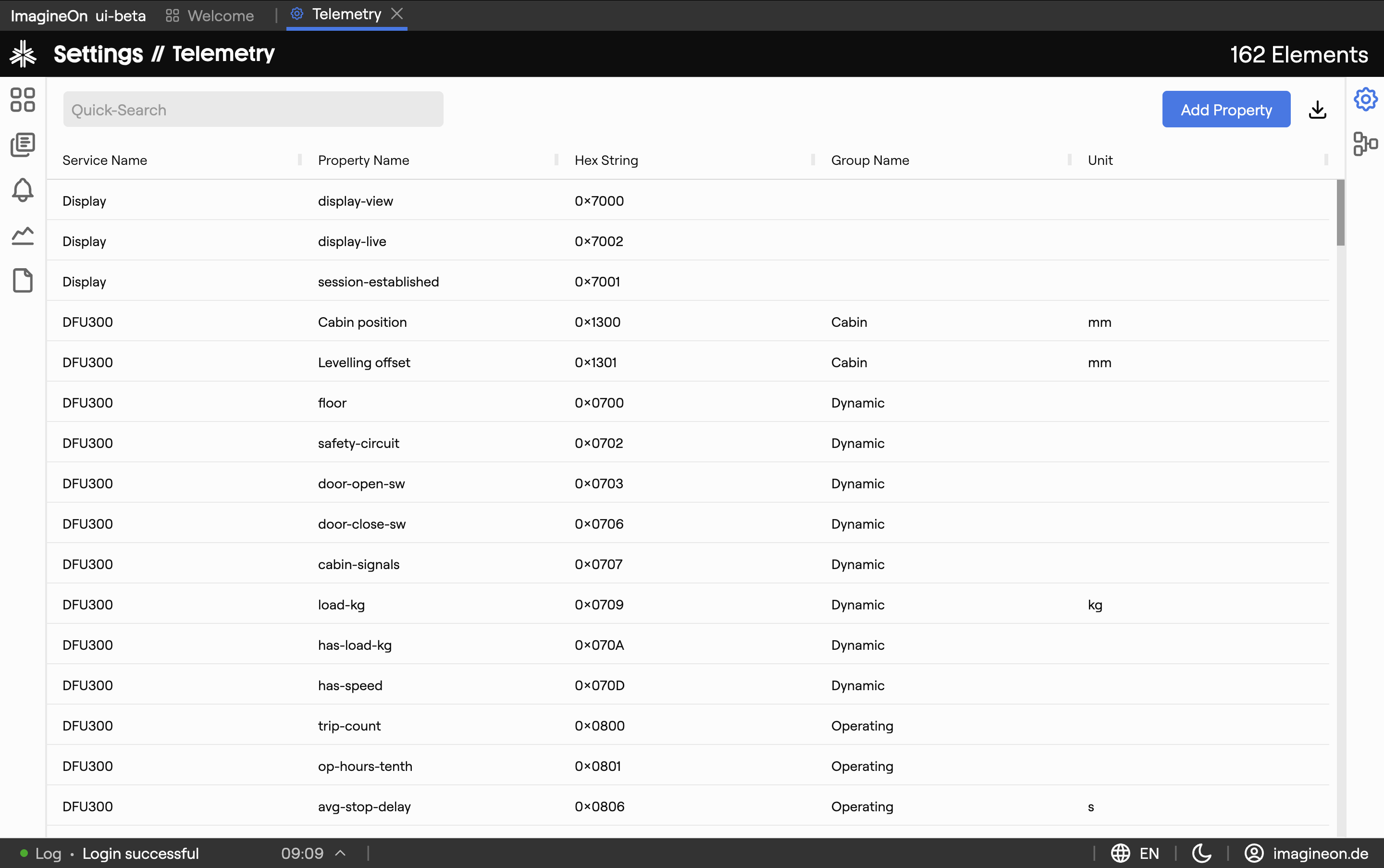
Each row identifies a property by:
- Service — which service definition the property belongs to.
- Property ID — the numeric identifier (shown as a hex value, e.g.
0x2001). - Base name — the canonical English name.
- Type — number / bool / enum / string.
- Unit — display unit if applicable.
The table supports the same gestures as everywhere else in Coldwave:
- Click a header to sort.
- Drag a header to reorder.
- Drag a header edge to resize.
- Open the Edit Columns menu to add or remove columns.
- Use the CSV export button to dump the visible rows.
Column layout is remembered per user.
4. Property Definitions tab
The Property Definitions tab is where the technical metadata of a property lives.
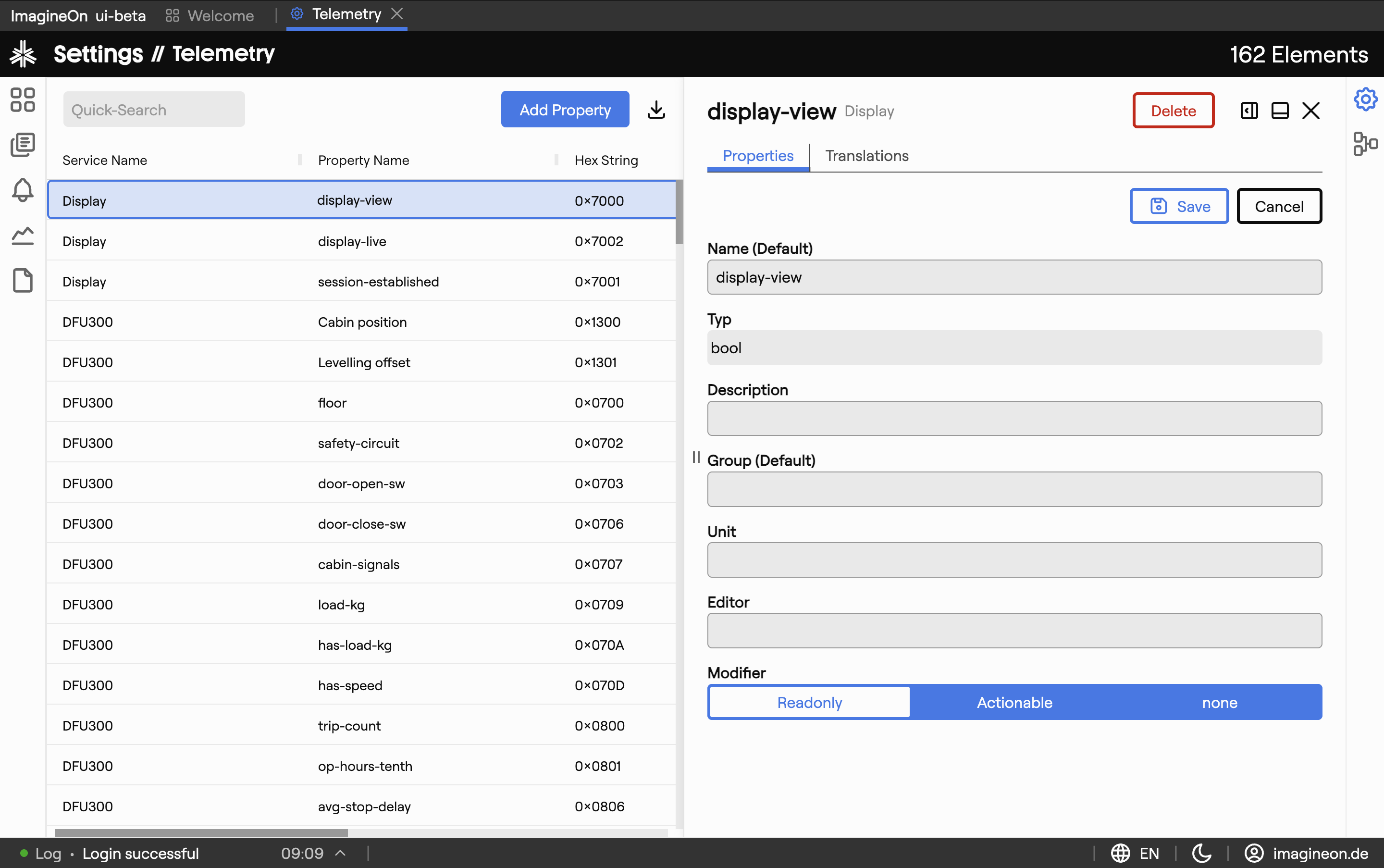
Fields you'll typically configure:
| Field | What it controls |
|---|---|
| Type | number, bool, enum, string. Determines how the value is parsed and displayed everywhere in the UI. |
| Unit | Display unit (°C, kWh, bar, …). Shown next to the value in tables, telemetry tiles and chart legends. |
| Min / Max | Valid range. Used for axis defaults in Analytics, for gauges in dashboards, and for client-side validation in remote-method calls. |
| Precision / Step | Number of decimal places shown; allowed step size when the property is writable. |
| Enum values | For enum properties: the list of allowed values with their numeric codes. |
| Display hints | Choose between number / gauge / progress bar / state badge rendering, and configure colour thresholds. |
Fields are validated client-side as you type — invalid input (e.g. min > max) is rejected before save.
Cascade effect. Changes to a property definition take effect immediately everywhere the property is shown — telemetry tiles in Fleet, chart axes in Analytics, columns in Reports. Watch out for breaking changes (e.g. changing a
numberto anenum) when devices in the field still emit the old type.
5. Translations tab
The Translations tab provides multi-language friendly names and descriptions. This is what users see — the technical base name is just an internal identifier.
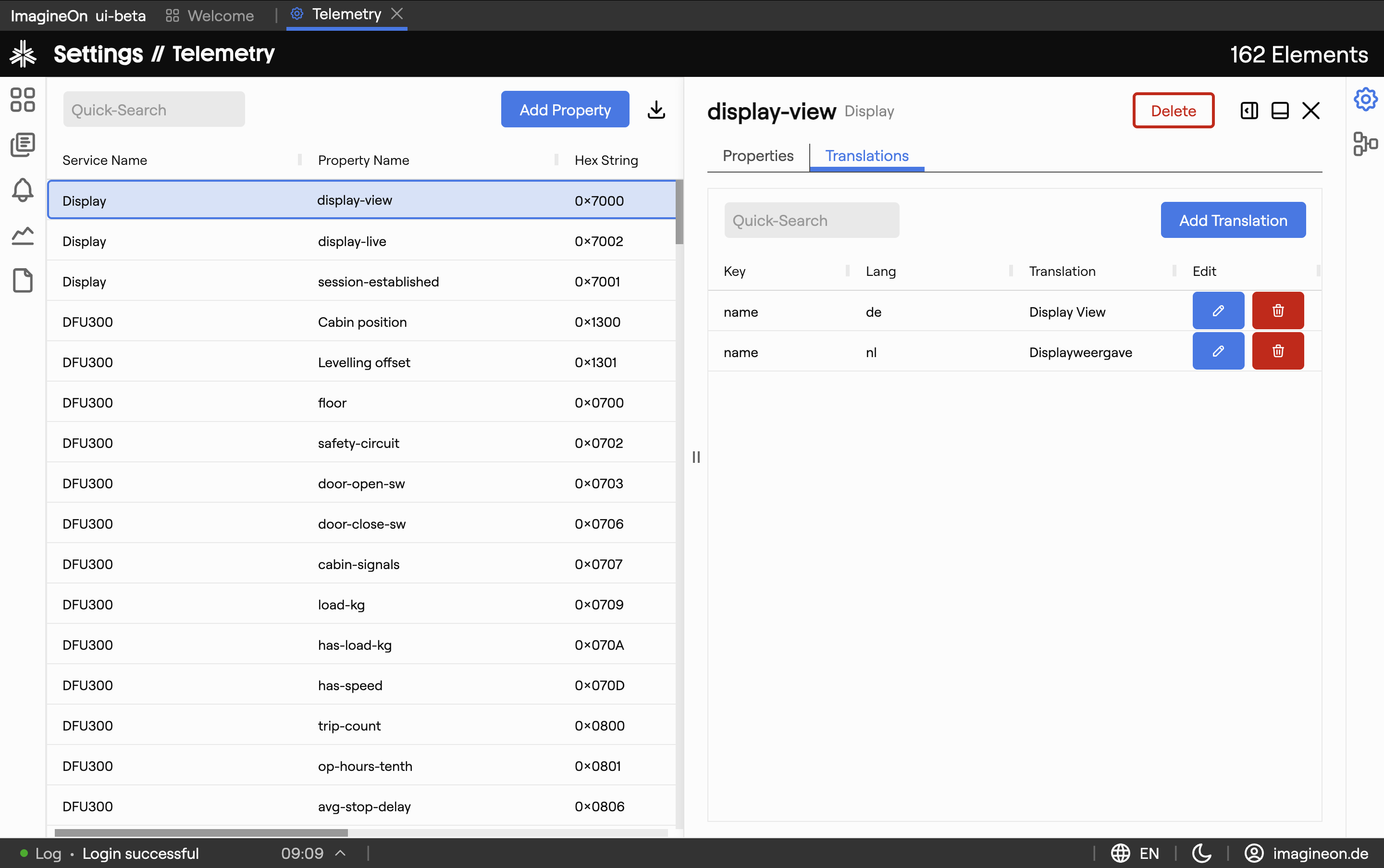
For each supported language you fill in:
- Display name — e.g. "Inlet temperature" in English, "Vorlauftemperatur" in German.
- Description — longer hover-text explanation.
Coldwave falls back to the default language (typically English) for any language that doesn't have its own translation, so you don't have to translate every property into every language up-front. Translate what you can; the rest stays in the default until you get to it.
Languages can be added or removed at the deployment level — talk to your Coldwave administrator if a language you need isn't in the list.
6. Adding a new property
Click Add Property in the table toolbar.
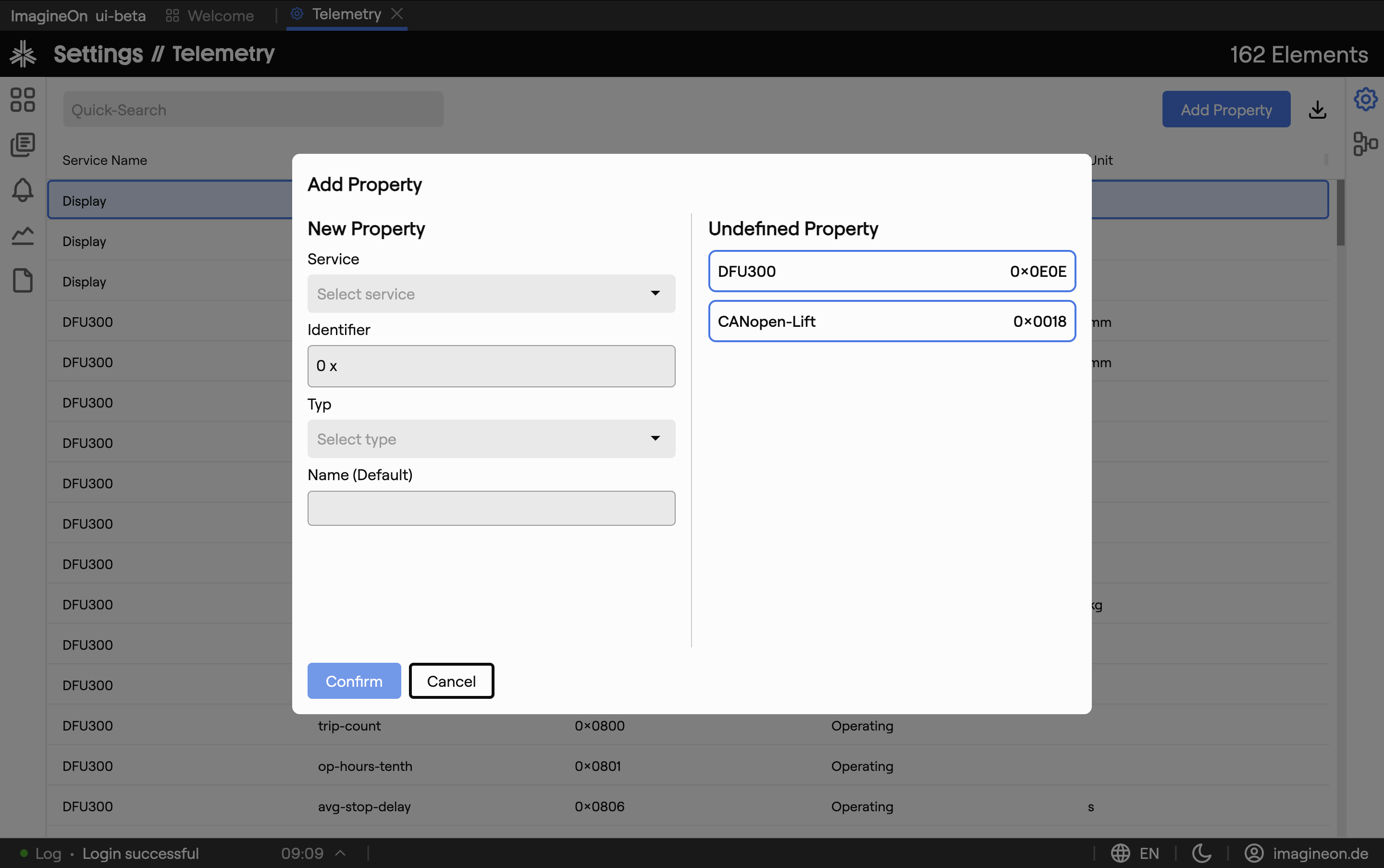
The modal asks for the minimum required fields:
- Service — which service the property belongs to.
- Property ID — the numeric identifier (hex). Must be unique within the service.
- Base name — the canonical English name.
- Type — number / bool / enum / string.
After creation the new row appears in the table and the detail panel opens automatically so you can fill in the remaining definition fields and translations.
7. Saving and validation
Each tab has its own Save / Cancel — there's no global Save All. Saving the Property Definitions tab doesn't save pending Translation changes, and vice versa.
Closing the editor with unsaved changes triggers a confirmation prompt so you don't accidentally lose work.
Validation is enforced before save:
- Required fields must be filled.
- Min must be ≤ Max.
- Enum codes must be unique within the property.
- Translations for the default language must be present (others may be blank).
8. Deep links
Heads-up. These URL patterns are reliable when produced by Coldwave itself. Hand-constructed URLs from another user may not land where you expect — see URLs and tabs.
| URL | Effect |
|---|---|
/settings/schema | Open the Schema Editor with no property selected. |
/settings/schema/<serviceId>/prop/<propertyId> | Open a specific property. |
/settings/meta-schema | Open the Meta-Schema Editor with no property selected. |
/settings/meta-schema/<serviceId>/prop/<propertyId> | Open a specific meta-property. |
9. Persistence — what is remembered
Per-user, persisted between sessions:
- Property-table column layout — visibility, order, width and default sort direction.
- Last-opened property — driven by the URL, so reloading reopens the same item.
- Schema vs. Meta-Schema — whichever editor you last had open.
The schema itself — property definitions and translations — is stored on the backend and is the same for every user with admin access. Changes are visible to all users immediately.