Appearance
Fleet — Device List
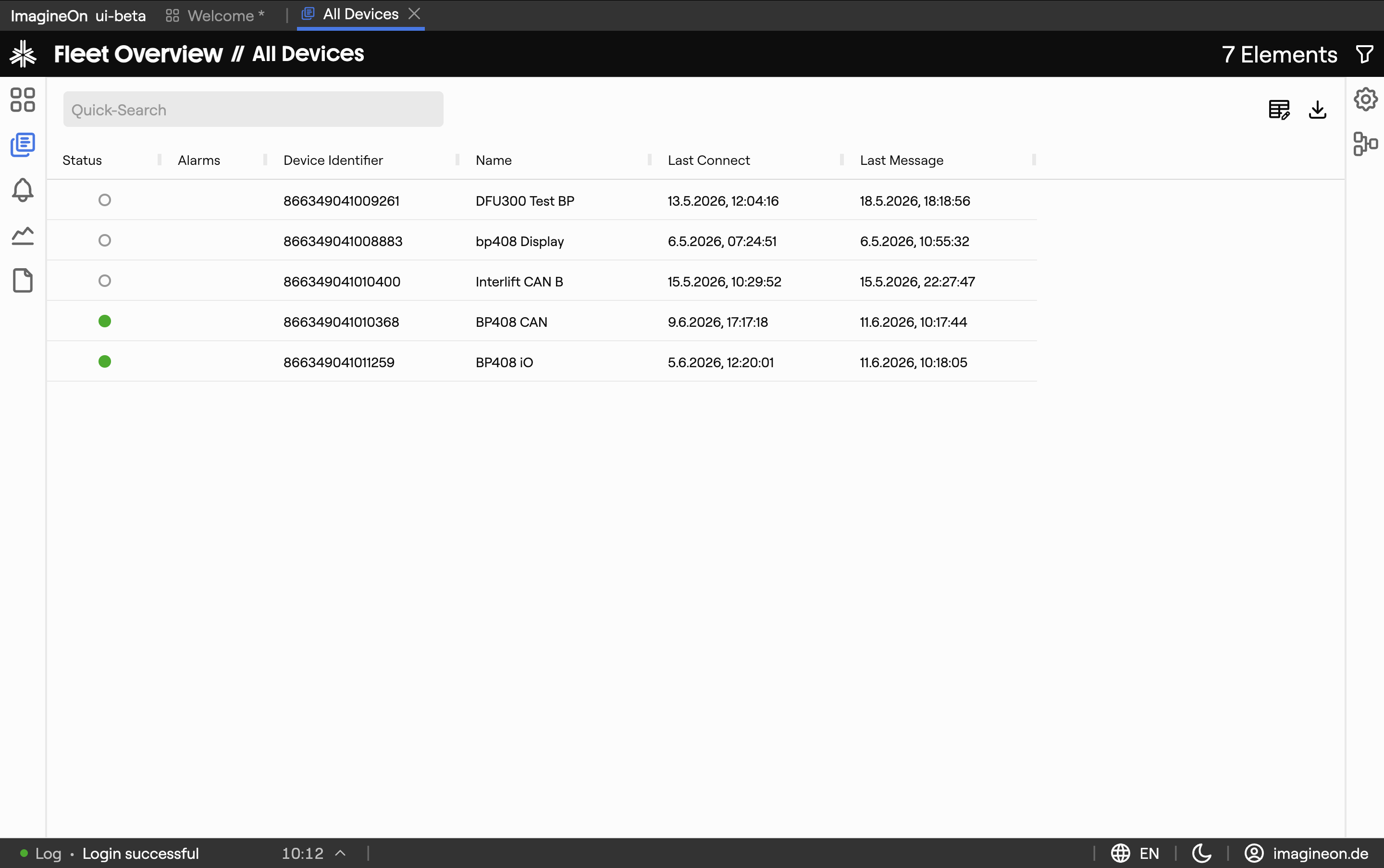
The Fleet view (/fleet) is Coldwave's device inventory and per-device workspace. This page covers the device list on the left of the screen — the table of every device you have access to, with its filtering, search and export controls.
For the right-hand panel that opens when you click a device, see Fleet — Device Details.
Contents
1. Page layout
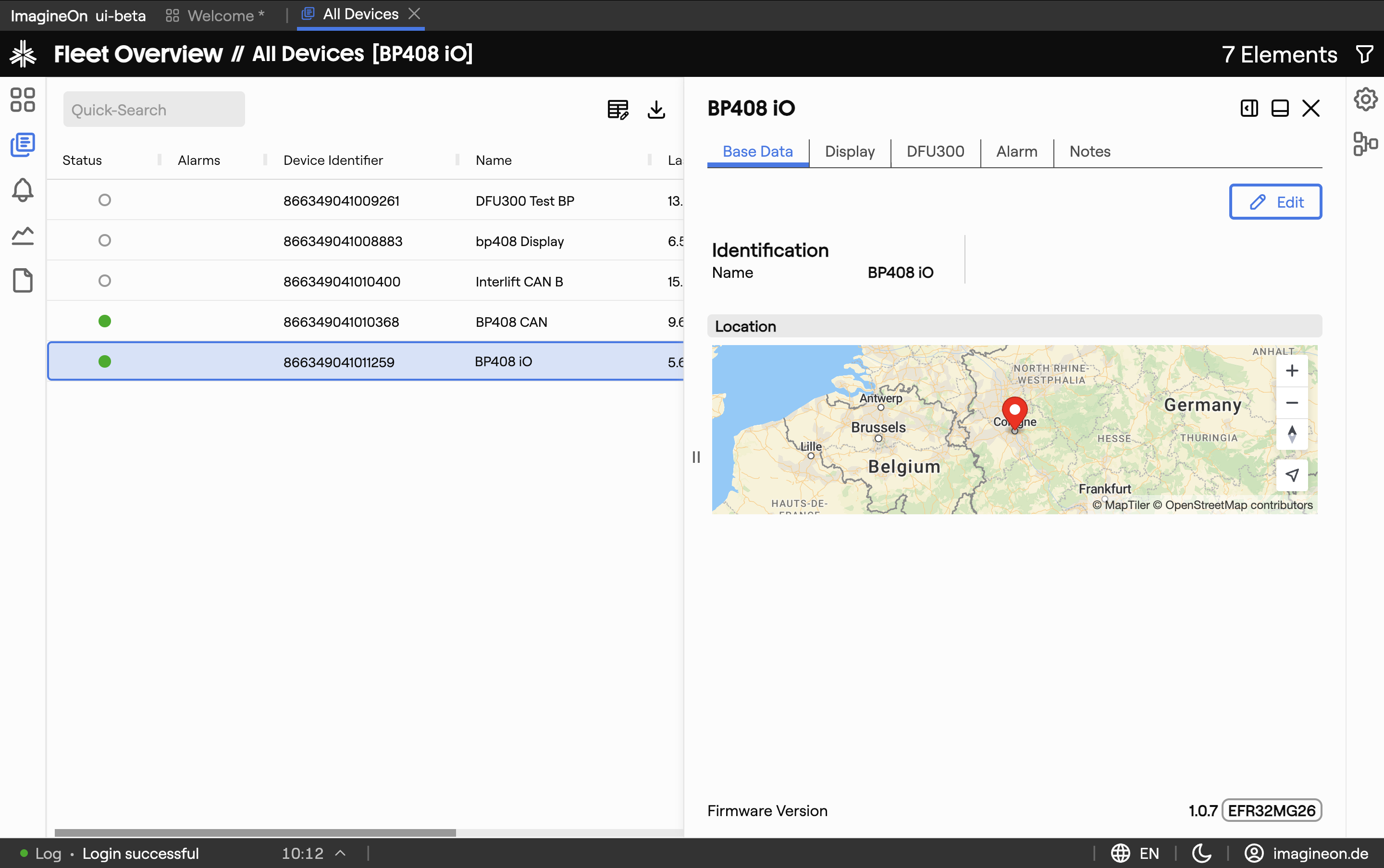
The Fleet view is a split panel: device list on one side, device detail on the other.
| Area | What lives there |
|---|---|
| Device table | All devices you have access to, with configurable columns and a quick-filter search. See §2. |
| Detail panel | The contents of the currently selected device. Empty when nothing is selected. Covered in Fleet — Device Details. |
| Splitter | Drag to give more room to the table or the detail panel. |
When nothing is selected the URL is just /fleet and the detail panel is empty.
2. Device table
The table on the left lists every device you can see. Columns are customizable and the table state (column order, widths, sort, filters) is remembered per user.
Quick filter
The search box above the table filters rows live across all visible columns — typing 408 matches any device whose identifier, name, location or any other shown column contains "408".
Columns
Default columns include the device identifier, name, online status, location, firmware version and last-seen timestamp. Click the Edit Columns icon in the toolbar to:
- Add columns for any custom metadata field exposed by your backend (e.g. serial number, group tag).
- Remove columns you don't need.
- Reorder columns by dragging.
Resize a column by dragging its right edge. Sort by clicking a header (click again to reverse, a third time to clear).
3. Selecting a device
- Click a row to open that device in the detail panel. The URL updates to
/fleet/<deviceId>/<tab>so the selection survives a page reload. - Click the same row again or navigate away to close the detail panel.
The detail panel's content — tabs, telemetry, alarms, notes — is documented in Fleet — Device Details.
4. Exporting
The toolbar above the device table has a CSV export button. It exports the currently visible rows — that is, after your search and column filters have been applied — using the currently shown columns. This makes it easy to export targeted lists like "all offline devices in Plant A" without further editing.
Filename: devices-YYYY-MM-DD-HH-MM-SS.csv.
5. Deep links
Heads-up. These URL patterns are reliable when produced by Coldwave itself. Hand-constructed URLs from another user may not land where you expect — see URLs and tabs.
| URL | Effect |
|---|---|
/fleet | Open the device list with no device selected. |
/fleet/<deviceId>/data | Open the device list with a specific device opened on its Data tab. |
For the full list of detail-panel deep links, see Fleet — Device Details.
6. Persistence — what is remembered
Per-user, persisted between sessions:
- Device table column layout — visibility, order, width and default sort direction.
- Search and filter state in the device table.
- Selected device — restored on page reload, so the same view comes back when you return.
- Split-panel orientation (vertical / horizontal) and splitter position.